
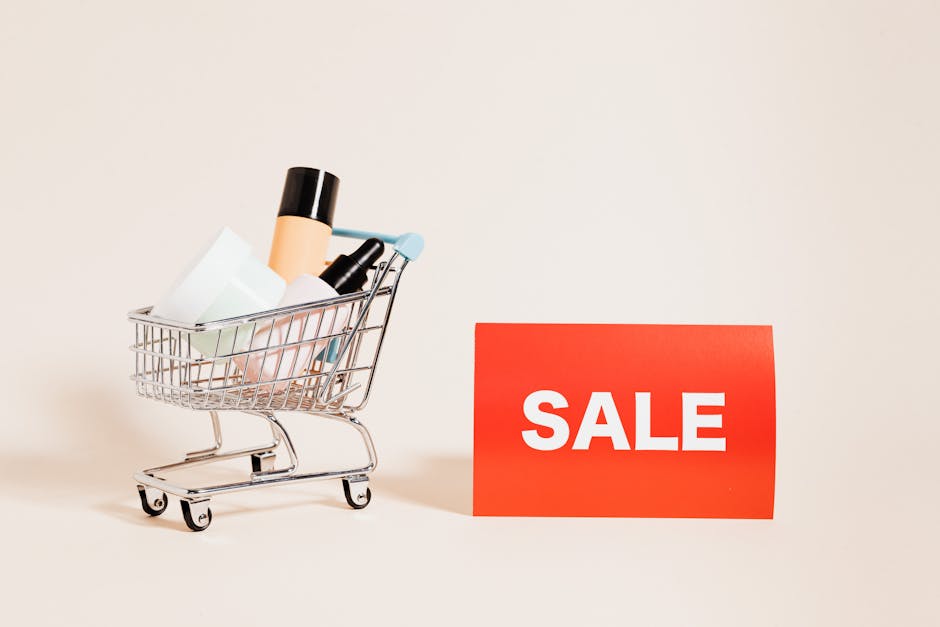
When someone lands on your WooCommerce store, they scan. They don't read every product description or compare every price. They look for signals that tell them what's worth their attention.
Product badges are those signals. A simple Sale tag. A New Arrival banner. A Low Stock alert. These small visual cues guide customers to the products you want them to notice and help them make decisions faster.
If your store doesn't use badges, you're missing an easy way to highlight promotions, create urgency, and improve conversions. Here's how to add them the right way.
Why Product Badges Matter for Your Store
Badges do three things well. First, they draw the eye. A bright badge on a product thumbnail stands out in a grid of similar-looking items. Second, they communicate value quickly. A customer sees Sale and knows there's a deal without reading further. Third, they create urgency. Limited Stock or Ending Soon pushes people to act now instead of later.
Without badges, every product looks the same. Your best sellers blend in with slow movers. Your seasonal promotions get lost. Customers have to work harder to figure out what's special, and many won't bother.
What Badges Should You Use
Start with the basics. WooCommerce includes a Sale badge by default when you set a sale price. That's a good start, but most stores need more than that.
Consider adding a New badge for products added in the last 30 days. This helps regular customers spot what they haven't seen before. A Best Seller or Popular badge works well for products with high order counts. It provides social proof without requiring customer reviews.
For inventory management, Low Stock and Out of Stock badges create urgency and set expectations. If you sell seasonal items, a Limited Time or Seasonal badge highlights products that won't be available year-round.
Custom badges work for specific situations. Made in USA, Eco-Friendly, or Free Shipping can highlight features that matter to your audience. The key is not to overdo it. Too many badges on one product dilutes their impact.
How to Add Badges in WooCommerce
The easiest method is a dedicated plugin. Several good options exist, both free and premium. Advanced Woo Labels is a popular free choice that lets you create custom text badges, upload images, and set conditions like sale percentage or stock level.
YITH WooCommerce Badge Management is a premium option with more design flexibility. You can create badges in different shapes, positions, and styles. It also includes scheduling so badges appear and disappear automatically based on dates.
Once you install a badge plugin, the setup follows a similar pattern. You create a badge, choose its appearance, and set rules for when it shows. For example, you might create a New badge that automatically appears on any product published in the last 30 days. Or a Sale badge that only shows when the discount is 20 percent or higher.
Most plugins let you position badges on product images. Top left and top right are the most common placements because they're visible in thumbnails and don't cover important product details.
Custom Badge Setup Without a Plugin
If you want more control or have specific design requirements, you can add badges with custom code. This requires editing your theme files or adding a custom plugin.
The basic approach involves hooking into WooCommerce template actions. You can add a badge to the product loop using the woocommerce_before_shop_loop_item_title action. For single product pages, use woocommerce_before_single_product_summary.
You'll write a function that checks product conditions like whether it's on sale, when it was published, or its stock level. Then output HTML for the badge. You'll also need CSS to position and style the badge properly.
This method gives you complete control but requires comfort with PHP and WordPress hooks. For most store owners, a plugin is faster and easier to maintain. Our WooCommerce development service can handle custom badge implementations if your needs go beyond what plugins offer.
Design Tips That Actually Work
Keep badges small but readable. They should be noticeable without dominating the product image. A badge that covers half the product photo defeats the purpose.
Use contrasting colors. A red Sale badge on a white or light background works because it stands out. Match badge colors to your brand but prioritize visibility over perfect color harmony.
Limit badge text. Sale works better than Special Limited Time Sale Event. Shorter text fits better on small screens and processes faster mentally.
Be consistent with placement. If your Sale badges appear in the top right corner, put all badges there. Customers learn to look in one spot.
Common Mistakes to Avoid
The biggest mistake is badge overload. If every product has two or three badges, none of them stand out. Use badges strategically on products that deserve attention.
Don't create false urgency. A Low Stock badge on a product you can easily reorder feels manipulative when customers figure it out. A Limited Time badge that runs for six months loses credibility.
Avoid badges that state the obvious. An In Stock badge is unnecessary when that's the default expectation. Save badges for information that adds value or changes behavior.
Make sure badges work on mobile. Test how they look on small screens. A badge that's perfect on desktop might cover critical information on a phone.
Measuring What Works
Pay attention to which badges drive clicks and conversions. Most analytics tools can't track badge performance directly, but you can watch overall metrics for products where you add or change badges.
If you add a Best Seller badge to a product, check whether its click-through rate improves in your product grid. If you use Low Stock badges, see whether those products convert faster.
Test different badge copy. Try Sale versus Save 20 Percent versus Limited Offer. Small wording changes can make a measurable difference.
The goal is not to badge everything. It's to guide attention to products that matter most to your business and your customers right now. Used well, badges are a simple tool that makes your store easier to shop and more profitable to run.
Image credit: Photo by www.kaboompics.com on Pexels.