
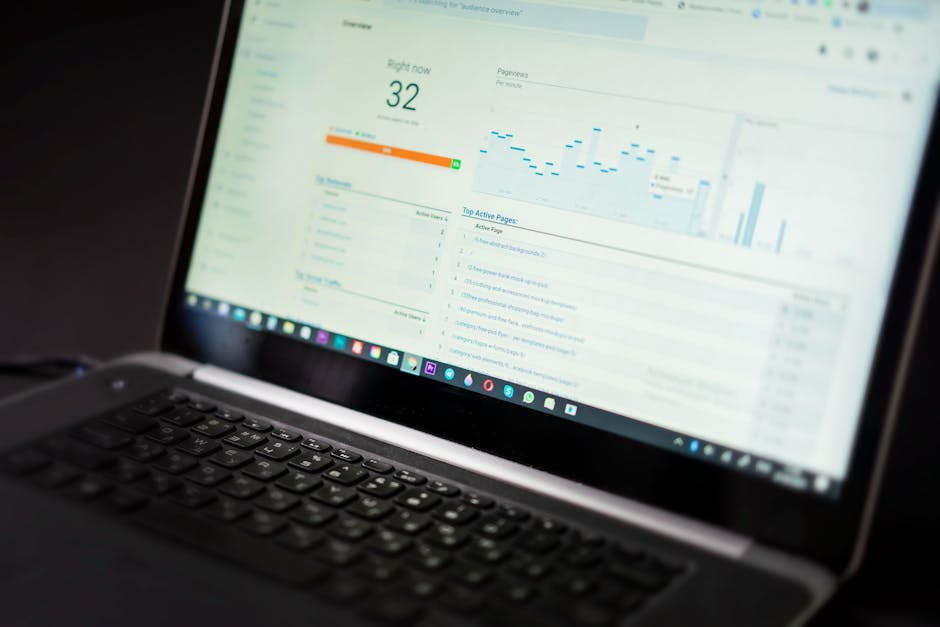
Google Analytics tells you how many people visit your site, but that number alone does not help you make better decisions. You need to know what those visitors actually do. Do they click your call-to-action button? Do they watch your video? Do they scroll past your pricing table or bail halfway down the page?
Google Analytics 4 introduced event-based tracking as the default model, replacing the old pageview-centric approach. Events capture interactions like button clicks, form submissions, video plays, file downloads, and scroll depth. When configured correctly, event tracking turns vague traffic numbers into a clear picture of user behavior.
This guide explains how to set up and use event tracking in GA4 without writing code or hiring a developer. You will learn which events matter most, how to create custom events, and how to interpret the data to improve your website.
Why Event Tracking Matters More Than Pageviews
Pageviews tell you someone landed on a page. They do not tell you if that person engaged with your content, clicked your pricing link, or downloaded your lead magnet. A page with 1,000 views and zero clicks is a failure, but pageview metrics alone will not reveal that problem.
Event tracking fills the gap. It shows you which elements get attention and which get ignored. You can measure how far visitors scroll, whether they play embedded videos, and which navigation links they use most. This data helps you prioritize changes that actually impact results.
For example, if you discover that 80 percent of visitors never scroll past the first screen, you know your headline or hero image needs work. If nobody clicks your contact form link, you might need to move it higher on the page or make it more visible.
Automatic Events GA4 Tracks Out of the Box
GA4 automatically tracks several useful events without any setup. These include page views, session starts, first visits, and basic engagement metrics like scroll depth and outbound link clicks. If you have enhanced measurement enabled in your GA4 property settings, you also get automatic tracking for file downloads, video engagement, and site search.
To verify enhanced measurement is active, log into GA4, go to Admin, select your property, click Data Streams, then click your website stream. You will see a toggle for Enhanced Measurement. Turn it on if it is off, and review the list of automatic events it captures.
These automatic events cover common scenarios, but they do not capture everything. If you want to track clicks on a specific button, form submissions, or custom interactions unique to your site, you need to create custom events.
How to Create Custom Events Using Google Tag Manager
Google Tag Manager is the easiest way to set up custom events without editing your website code. GTM is a free tool that lets you manage tracking tags through a web interface. If you already have GTM installed, you can create new event triggers in minutes.
First, decide what you want to track. Common examples include clicks on a phone number link, clicks on a pricing button, form submissions, or time spent on a specific page. Each of these requires a trigger and a tag in GTM.
To track a button click, log into Google Tag Manager, go to Triggers, and click New. Choose Click as the trigger type, then select All Elements or Just Links depending on what you are tracking. Use CSS selectors or link URLs to target the specific element. For example, if your contact button has a class of cta-button, you can target it using that class name.
Next, create a tag that fires when that trigger activates. Go to Tags, click New, and select GA4 Event as the tag type. Enter your GA4 Measurement ID, give the event a name like button_click_contact, and attach the trigger you just created. Save and publish your changes.
Within a few hours, you will start seeing this event appear in your GA4 reports under Events in the left sidebar.
Which Events You Should Track First
Not every interaction is worth tracking. Focus on events that align with your business goals. If your goal is to generate leads, track form submissions and contact button clicks. If your goal is to sell products, track add-to-cart clicks and checkout starts.
Start with three to five high-value events. Tracking too many creates noise and makes it harder to spot patterns. Good starter events include primary call-to-action clicks, phone number or email link clicks, file downloads like PDFs or brochures, and video plays if video is central to your strategy.
You can also track scroll depth to see if people read your content. GA4 tracks this automatically at 90 percent scroll depth, but you can create custom events for 25 percent, 50 percent, and 75 percent thresholds to get a fuller picture of engagement.
How to Use Event Data to Make Real Improvements
Once you collect event data, the real work begins. Raw numbers mean nothing without context. You need to compare event rates across pages, traffic sources, and user segments to identify what works and what does not.
Go to Reports, then Engagement, then Events in GA4. You will see a list of all tracked events with counts and engagement metrics. Click any event name to see a breakdown by page, traffic source, device type, and location.
If you notice a page with high traffic but low event counts, that page is underperforming. Visitors arrive but do not take action. You might need a clearer call-to-action, better placement of your contact button, or more compelling copy.
If one traffic source drives more conversions than others, double down on that channel. If mobile visitors engage less than desktop visitors, your mobile experience needs improvement.
You can also create custom reports and explorations in GA4 to compare events side by side or build funnels that show drop-off points in multi-step processes like checkout or lead forms.
Common Mistakes to Avoid
The biggest mistake is tracking events you will never use. Every event you add requires setup, testing, and ongoing review. If you are not prepared to act on the data, do not track it.
Another common error is using vague event names. An event called click_button tells you nothing six months later. Use descriptive names like click_pricing_cta or download_service_brochure so you know exactly what the event measures.
Finally, do not forget to test. After setting up a new event in GTM, use the Preview mode to verify it fires correctly. Click the element you are tracking and confirm the event appears in the GTM debug panel. Publish only after you confirm it works.
Start Small and Build Over Time
You do not need to track everything on day one. Start with one or two critical events, validate the data, and expand gradually. Event tracking works best when it becomes a habit, not a one-time project.
If your site needs help with analytics setup, conversion tracking, or turning data into design improvements, reach out and we can walk you through it. Understanding what visitors do on your site is the first step toward building something they actually want to use.
Image credit: Photo by Atlantic Ambience on Pexels.