
Most people know a few keyboard shortcuts like copy and paste, but they still reach for the mouse dozens of times per hour. Those small interruptions add up. Learning just 10 to 15 essential shortcuts can save you hours every week and reduce repetitive strain from constant mouse movement.
The real benefit is not just speed. Keyboard shortcuts let you stay focused on your work instead of breaking concentration to hunt for menu items or toolbar buttons. Once muscle memory kicks in, you will finish tasks faster without thinking about the mechanics.
Universal Shortcuts That Work Almost Everywhere
These shortcuts work in nearly every program on Windows and Mac, from email clients to web browsers to document editors.
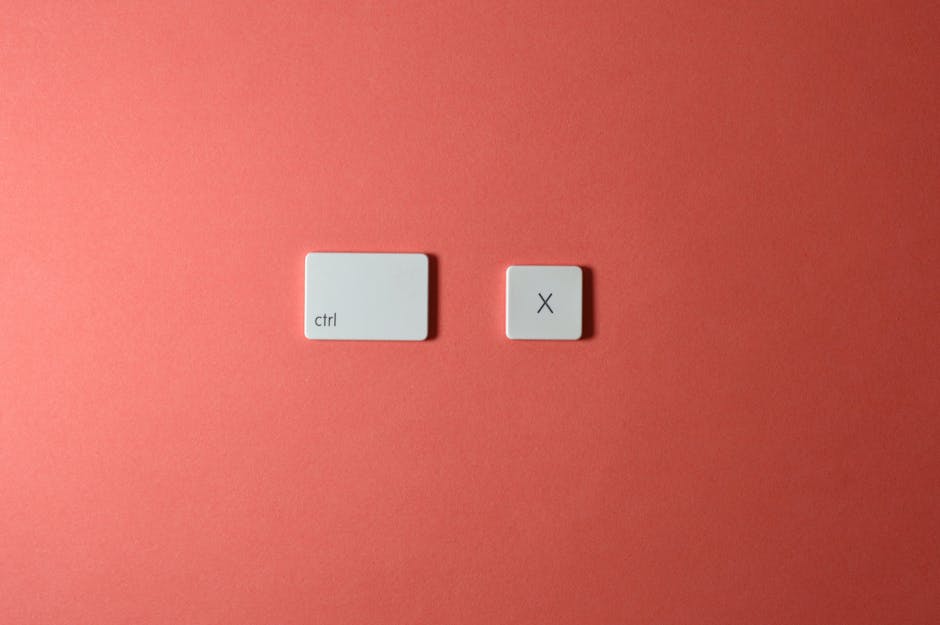
Ctrl + C (Windows) or Cmd + C (Mac) copies selected text or files. Ctrl + V or Cmd + V pastes. Ctrl + X or Cmd + X cuts. You probably know these already, but many people do not realize they work for files in file explorers, not just text.
Ctrl + Z or Cmd + Z undoes your last action. Made a mistake? Hit this instead of panicking. Ctrl + Y or Cmd + Shift + Z redoes what you just undid.
Ctrl + F or Cmd + F opens the find function in documents, web pages, and spreadsheets. Stop scrolling through long pages. Search for the exact word you need.
Ctrl + A or Cmd + A selects all content in the current window or document. Useful when you need to copy an entire email, delete all items in a folder, or format a whole document at once.
Ctrl + S or Cmd + S saves your current document. Get in the habit of tapping this every few minutes. Auto-save is common now, but it is not universal, and crashes still happen.
Window and Tab Management Shortcuts
If you work with multiple browser tabs or application windows, these shortcuts will change how you work.
Ctrl + T or Cmd + T opens a new tab in your browser. Ctrl + W or Cmd + W closes the current tab. Ctrl + Shift + T or Cmd + Shift + T reopens the last closed tab, which is a lifesaver when you accidentally close something important.
Ctrl + Tab or Cmd + Option + Right Arrow switches to the next tab. Ctrl + Shift + Tab or Cmd + Option + Left Arrow goes back to the previous tab. Stop clicking on tiny tab labels.
Alt + Tab (Windows) or Cmd + Tab (Mac) switches between open applications. Hold the key and tap Tab repeatedly to cycle through everything you have running. On Windows, Alt + Shift + Tab cycles backward.
Windows + D (Windows) or Cmd + F3 (Mac) minimizes all windows and shows your desktop. Useful when you need to grab a file quickly or your boss walks by and you want to look busy.
Text Editing Shortcuts for Documents and Emails
These work in word processors, email clients, text editors, and most web forms.
Ctrl + B or Cmd + B makes text bold. Ctrl + I or Cmd + I italicizes. Ctrl + U or Cmd + U underlines. Faster than reaching for formatting buttons.
Home jumps to the beginning of the current line. End jumps to the end. Ctrl + Home or Cmd + Up Arrow goes to the top of the document. Ctrl + End or Cmd + Down Arrow goes to the bottom.
Shift + Arrow Keys selects text one character or line at a time. Ctrl + Shift + Arrow Keys or Cmd + Shift + Arrow Keys selects entire words or paragraphs. This is much faster than dragging with the mouse, especially for precise selections.
Ctrl + Backspace or Cmd + Delete deletes the entire word to the left of the cursor instead of one character at a time. Great for fixing mistakes quickly.
Browser-Specific Shortcuts to Work Faster Online
Ctrl + L or Cmd + L highlights the address bar so you can type a new URL or search term immediately without clicking.
Ctrl + D or Cmd + D bookmarks the current page. You can organize it later, but at least you will not lose the link.
Ctrl + Shift + N or Cmd + Shift + N opens a private or incognito window, useful for testing how your website looks to logged-out users or researching without affecting your search history.
Spacebar scrolls down one page. Shift + Spacebar scrolls up. Faster than grabbing the scrollbar, especially on long articles or product pages.
Ctrl + Plus or Cmd + Plus zooms in on a web page. Ctrl + Minus or Cmd + Minus zooms out. Ctrl + 0 or Cmd + 0 resets to default zoom. Helpful if you share a computer with someone who uses a different zoom level or if a site has tiny text.
Email Shortcuts to Clear Your Inbox Faster
Most email clients support shortcuts, though the exact keys vary. Gmail and Outlook have the most robust systems.
In Gmail, press C to compose a new message, R to reply, A to reply all, and F to forward. Press E to archive the current email and move to the next one. Press Shift + 3 to delete. Press J to move to the next email and K to go back.
In Outlook, Ctrl + R or Cmd + R replies, Ctrl + Shift + R or Cmd + Shift + R replies to all, and Ctrl + F or Cmd + F forwards. Ctrl + N or Cmd + N creates a new message. Ctrl + E or Cmd + Option + F jumps to the search box.
Check your email client's settings or help documentation for a full list. Many let you customize shortcuts to match your workflow.
How to Start Learning Without Overwhelming Yourself
Do not try to memorize 50 shortcuts at once. Pick three to five that would help you most based on tasks you do repeatedly every day. Use them consciously for a week until they become automatic. Then add three more.
Print a cheat sheet and tape it near your monitor, or set a screenshot as your desktop wallpaper. Most operating systems and major applications publish official shortcut guides. A quick web search for your specific program plus the word shortcuts will usually find one.
If you manage a team, share a shortcut of the week in your meetings or chat. Small productivity gains multiply when everyone on the team adopts them.
The best part is that keyboard shortcuts cost nothing and work on the software you already use. You do not need new tools or subscriptions. Just a little practice and the willingness to keep your hands on the keyboard instead of reaching for the mouse every few seconds. If you need help optimizing your business technology setup beyond shortcuts, reach out anytime and we can discuss what works best for your workflow.
Image credit: Photo by Miguel Á. Padriñán on Pexels.