
Cloud storage subscriptions add up fast. Start with a free tier, fill it in months, then pay $10 monthly. Add family members or business files, and you are at $20 or $30 every month. Over five years, that is $1,800 or more for storage you never own.
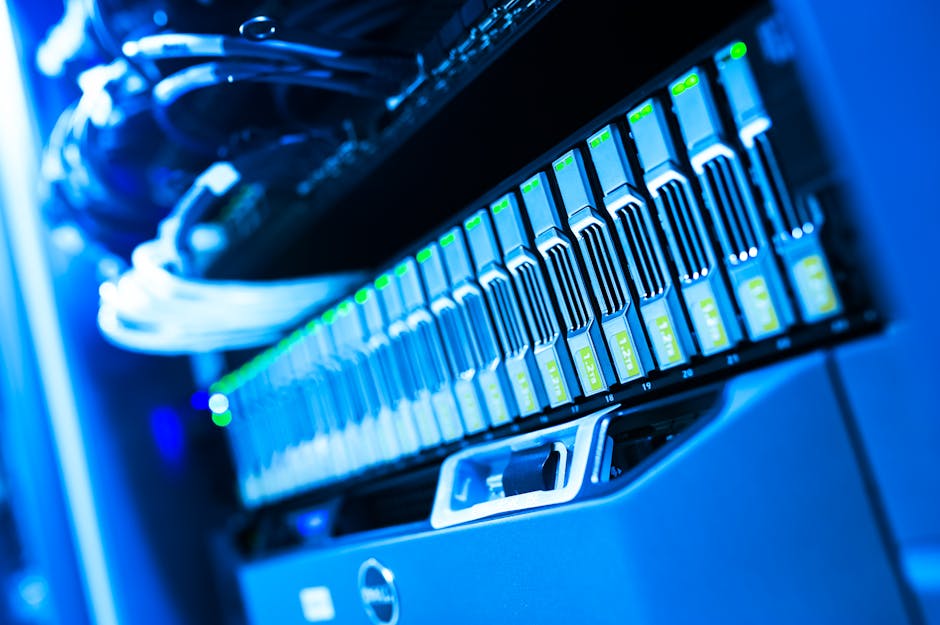
Network Attached Storage, or NAS, is a small device that sits on your home or office network and stores files on hard drives you control. You pay once for the hardware, own your data, and access it from any device on your network or remotely over the internet. No monthly fees. No storage caps. No company scanning your files or changing terms.
This is not just for tech experts. Modern NAS devices are easier to set up than ever, and they solve real problems for small businesses, families, and anyone tired of cloud storage bills.
What a NAS Device Actually Does
A NAS is a small computer designed to do one job well: store files and make them available to other devices on your network. It connects to your router with an ethernet cable, runs 24/7, and serves files to your laptop, phone, tablet, or desktop whenever you need them.
Think of it as your own private cloud. You can upload photos from your phone, stream videos to your TV, back up your computer automatically, share files with coworkers, and access everything remotely when you are away from the office. The files live on hard drives inside the NAS, not on someone else's server.
Popular brands like Synology, QNAP, and Asustor build NAS devices for home and business use. Entry-level models start around $150 without drives, and you add your own hard drives based on how much storage you need. A two-bay NAS with two 4TB drives gives you 4TB of usable space after redundancy, enough for most small businesses or families.
Why People Switch From Cloud Subscriptions to NAS
The biggest reason is cost. If you are paying $120 per year for 1TB of cloud storage, a $400 NAS investment pays for itself in about three years. After that, you only pay for electricity, which runs a few dollars per month. You also avoid the cycle of upgrading storage tiers as your files grow.
Privacy matters too. Your files stay on hardware you control, in your building. No company scans them for ad targeting. No third party can suspend your account or change their terms. You are not stuck if a cloud service shuts down or raises prices.
Performance is another factor. Accessing files over your local network is faster than downloading from the cloud, especially with large files. Video editors, photographers, and anyone working with big project files notice the difference immediately.
A NAS also centralizes backups. Instead of backing up each computer separately to the cloud, you back up to the NAS once, then the NAS backs up to an external drive or offsite location. One system protects everything.
How to Choose and Set Up Your First NAS
Start by deciding how much storage you need and whether you want redundancy. A two-bay NAS holds two drives and can mirror them, so if one drive fails, you do not lose data. A four-bay model gives you more space and better redundancy options. For most small businesses, two bays is plenty to start.
Buy the NAS unit and hard drives separately. NAS-specific drives like Western Digital Red or Seagate IronWolf are built to run constantly and handle the workload. Avoid desktop drives, which are not designed for 24/7 operation.
Setup involves plugging the NAS into your router, powering it on, and following the on-screen setup wizard. You create an admin account, choose a RAID configuration for redundancy, and set up user accounts. The whole process takes 20 to 30 minutes, and the manual walks you through each step.
Once configured, the NAS appears as a network drive on your computer. You drag files into it like any folder. Mobile apps from Synology, QNAP, and others let you upload photos, stream music, and access documents from your phone. Remote access requires setting up a secure connection through the NAS software, usually with a few clicks.
Common Uses That Save Time and Money
Automatic computer backups are the most practical use. Install backup software on your laptop or desktop, point it to the NAS, and schedule nightly backups. Your files are protected without thinking about it, and you can restore individual files or entire systems if something goes wrong.
Photo and video storage is another big one. Instead of paying for Google Photos or iCloud, your phone uploads photos to the NAS automatically when you are on your home network. You free up phone storage and keep originals in full resolution without compression.
File sharing gets simpler too. Create a shared folder on the NAS, give team members access, and everyone works from the same files. No emailing attachments. No version confusion. Changes sync instantly, and you control who sees what.
Media streaming works well. Load movies, music, and home videos onto the NAS, and stream them to any device using apps like Plex or the built-in media server. No need to store copies on every device or pay for multiple streaming services.
Remote Access Without Exposing Your Network
Modern NAS devices include secure remote access through encrypted connections. You install an app on your phone or configure a web portal, log in with your credentials, and access files from anywhere. The connection tunnels through the NAS software, so you do not open ports on your router or expose your network to threats.
Some brands offer cloud-like sync services. You install a desktop app, choose folders to sync, and they stay updated across all your devices just like Dropbox. The difference is your files never leave your hardware, and you do not pay monthly fees.
Remote access is useful for business owners who travel, families with college students, or anyone who needs files away from home. You are not dependent on an internet connection to access your data. As long as your NAS is online, your files are available.
When Cloud Storage Still Makes Sense
A NAS is not always the best choice. If you work entirely on the road and never connect to a home network, cloud storage is more practical. If you need instant access from dozens of locations or collaborate with people outside your organization, cloud services handle permissions and sharing better.
Offsite backups are still critical. A NAS protects against drive failure and accidental deletion, but not fire, theft, or disaster. The smart approach is to use a NAS for primary storage and daily access, then back up critical files to a cloud service or external drive stored elsewhere.
The break-even point depends on how much storage you need and how long you keep the NAS. If you only use 100GB and do not expect that to grow, cloud storage is cheaper. If you are at 500GB or more and adding files every month, a NAS pays for itself quickly.
Getting Started Without Overcomplicating It
You do not need to understand RAID levels, network protocols, or Linux to use a NAS. Start with a basic two-bay model, install two matching drives, and follow the setup wizard. Use it for automatic backups first. Once that is running smoothly, add file sharing, photo uploads, or media streaming.
Most mistakes happen when people try to configure everything at once. Focus on one use case, make sure it works, then expand. The NAS software is designed for non-technical users, and support forums are full of step-by-step guides.
If you need help planning or implementing file storage for your business, reach out and we can walk through your options. The right setup depends on your workflow, team size, and how you access files day to day.
A NAS is one of those purchases that quietly improves your tech life. You stop worrying about storage limits, recurring fees, and whether your files are safe. You own the system, control the data, and only pay once.
Image credit: Photo by panumas nikhomkhai on Pexels.