
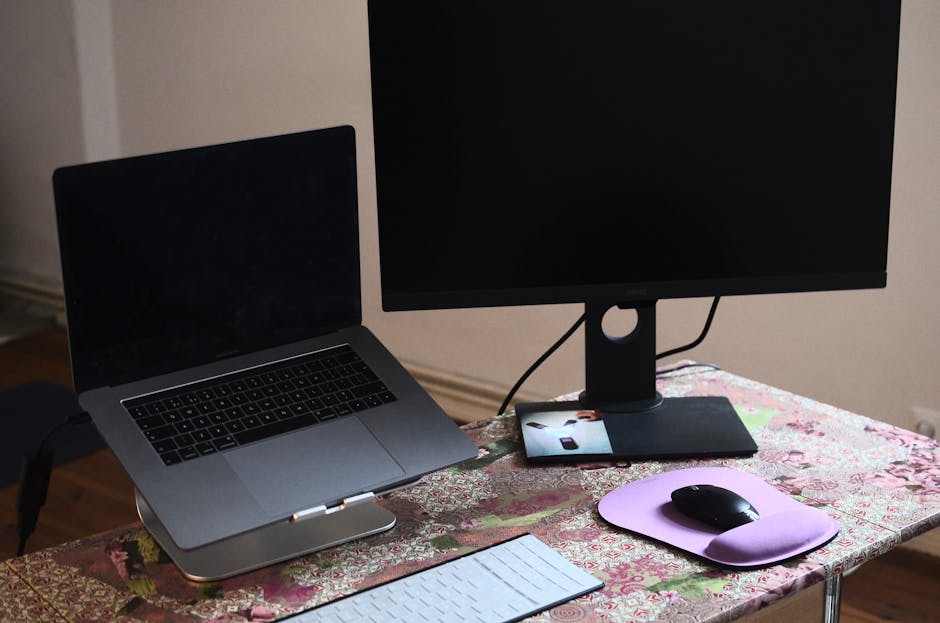
If you work from a laptop, you know the frustration. One screen is never enough. You flip between tabs, lose your place, and waste time searching for the window you just closed. A second monitor solves this, but you cannot drag a full desktop setup to a coffee shop, client meeting, or hotel room.
Portable monitors fix that problem. They are lightweight, powered by your laptop, and give you dual-screen productivity anywhere. No power cord. No bulky tower. Just plug in and work like you are at your desk.
Why a Second Screen Matters Even When You Travel
Most people associate dual monitors with office setups. But the need for screen space does not disappear when you leave the office. If you work remotely, meet clients on-site, or travel frequently, you still need to reference documents while writing emails, compare spreadsheets side by side, or monitor a dashboard while taking notes.
Switching between windows kills focus. Studies show it takes an average of 23 minutes to fully regain concentration after an interruption. Every time you minimize a window to check something, you lose momentum. A second screen eliminates that friction.
Portable monitors weigh about as much as a notebook. Most are thinner than a magazine. They slip into a laptop bag and set up in seconds. You get the benefit of a full workstation without carrying the equipment.
How Portable Monitors Work
Portable monitors connect to your laptop through USB-C or HDMI. Many newer models use a single USB-C cable for both video and power, which means the monitor draws electricity directly from your laptop. No outlet required. No extra cables.
Older laptops without USB-C can still use portable monitors through HDMI, but you will need a separate power source. Some models include a built-in battery. Others require a USB power bank or wall adapter. Check your laptop ports before buying.
Once connected, your laptop recognizes the monitor as a second display. You can extend your desktop, mirror your screen, or set the portable monitor as your primary display. The operating system handles this automatically. You do not need special drivers or software.
Sizes and Resolutions
Portable monitors range from 13 to 17 inches. The most popular size is 15.6 inches, which matches the screen size of many business laptops. This creates a balanced dual-screen setup without one display dwarfing the other.
Resolution matters more than size. Look for at least 1920x1080, known as Full HD or 1080p. This gives you sharp text and clear images. Some higher-end models offer 4K resolution, but that drains your laptop battery faster and costs significantly more. For most business tasks, 1080p is plenty.
Choosing the Right Portable Monitor
Not all portable monitors are built the same. Here are the features that matter most for business use.
USB-C power and video: This is the biggest convenience factor. One cable does everything. If your laptop supports USB-C, prioritize monitors with this feature.
Built-in stand: Some monitors include a magnetic cover that folds into a stand. Others require a separate kickstand or case. A built-in option saves space and setup time.
Weight and thickness: If you travel often, every ounce matters. Look for monitors under two pounds and less than half an inch thick.
Brightness: Portable monitors are often used in varied lighting. A brightness rating of at least 250 nits ensures you can see the screen in bright rooms or near windows.
Matte vs. glossy screen: Matte screens reduce glare but may look slightly less vibrant. Glossy screens offer richer colors but reflect light. For business use, matte is usually the better choice.
Setting Up Your Portable Monitor
Setup takes less than a minute. Connect the USB-C or HDMI cable. Your laptop detects the monitor and prompts you to choose a display mode. Select extend to create a dual-screen workspace. Your mouse and windows now move seamlessly between both screens.
Position the portable monitor to your left or right, depending on your dominant hand and workflow. Most people place reference materials on the second screen and active work on the laptop. Email, calendars, and chat apps work well on the portable monitor while you focus on documents or spreadsheets on the main screen.
Adjust the resolution and scaling in your display settings if text looks too small or too large. Windows and macOS both allow independent scaling for each monitor, so you can customize the setup to your preference.
Real-World Uses for Business Owners
Portable monitors are not just for tech workers. They solve practical problems for almost any business.
Client presentations: Instead of huddling around a single laptop screen, use the portable monitor to display a presentation while you control it from your laptop. This creates a cleaner, more professional experience.
Trade shows and events: Set up a dual-screen booth with product demos on one screen and marketing materials on the other. The compact setup fits on small tables without the bulk of traditional monitors.
Financial and inventory work: Compare reports, invoices, or inventory lists side by side without printing stacks of paper or flipping between tabs.
Video calls with notes: Keep your video call on one screen and notes, agendas, or shared documents on the other. You stay engaged without losing track of discussion points.
Battery Life and Power Management
Portable monitors do drain your laptop battery faster, especially if powered through USB-C. Expect your battery life to drop by 20 to 40 percent when using a second screen. If you need to work unplugged for long periods, bring a power bank or choose a monitor with its own battery.
Some laptops limit USB-C power output, which can cause the monitor to flicker or disconnect. Check your laptop specifications to confirm it supports video output and sufficient power delivery through USB-C. Most modern business laptops handle this without issue, but older models may struggle.
When a Portable Monitor Makes Sense
Portable monitors are not for everyone. If you work from the same desk every day, a traditional desktop monitor offers better value and performance. Portable monitors shine when mobility matters.
They are ideal for remote workers who rotate between home, coworking spaces, and client offices. They suit business owners who present on-site or attend trade shows. They help anyone who needs serious productivity on the road without carrying a full workstation.
For questions about choosing the right portable monitor or other productivity tools for your business, reach out to our team. We help Connecticut businesses and remote teams work smarter with the right technology.
Image credit: Photo by Skylar Kang on Pexels.