
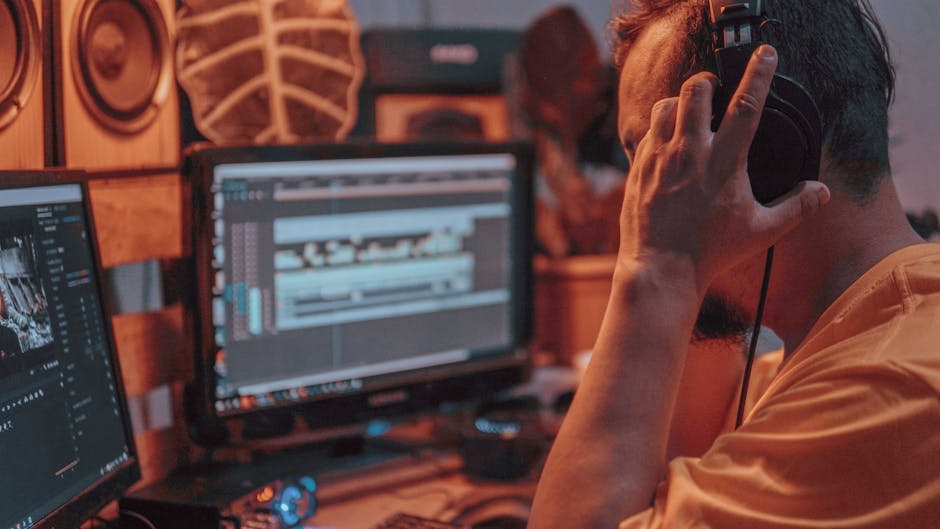
Explaining a software problem or teaching someone how to use a tool over email is painful. You write paragraph after paragraph describing where to click, what menu to open, and which button to press. The recipient still gets confused. You schedule a video call just to show them something that takes 30 seconds.
Screen recording software solves this problem. Instead of writing instructions or scheduling meetings, you record your screen while you demonstrate the task. The recipient watches the video at their convenience and can replay confusing parts as many times as needed.
Why Screen Recording Makes Business Communication Faster
A two-minute screen recording replaces a 20-email thread. When you need to show someone how to process a refund in your point-of-sale system, export a report from your accounting software, or troubleshoot why a form isn't working on your website, a video demonstrates exactly what you mean.
Screen recordings are especially valuable when working with remote teams or contractors. If your graphic designer needs to know how to access the company file server, or your bookkeeper needs training on your new invoicing system, you record it once and send the link. Everyone gets the same clear instructions.
Technical support becomes dramatically easier. When software isn't working correctly, describing the problem to customer support wastes time. They ask for screenshots, you take six different ones, they ask follow-up questions, and the ticket drags on for days. A screen recording shows them exactly what's happening in real time, including error messages, where you clicked, and what the software did in response.
When to Use Screen Recording in Your Business
Screen recordings work well for several common business situations. Employee onboarding and training becomes faster when you record how to use your specific systems. New hires can watch the videos on their own schedule and refer back when they forget a step.
Client communication improves when you can show rather than tell. If a client asks how to update their website or use a feature you built for them, a quick screen recording answers their question without scheduling a call.
Bug reports and technical issues get resolved faster. When you contact tech support for any software or service, including your website provider, a screen recording shows the support team exactly what's broken. They can see the steps you took, the error messages that appeared, and how the system responded.
Process documentation becomes simple. Instead of writing a 10-page manual about your monthly reporting process or how to handle customer returns, you record yourself doing it once. The video serves as living documentation that you can update when processes change.
What Features Actually Matter
Not all screen recording tools are created equal. The most useful ones let you record your full screen, a single application window, or a specific region. This flexibility matters because sometimes you need to show your entire desktop, and other times you only want to capture one program without exposing everything else on your screen.
Audio recording is essential. Being able to narrate what you're doing while recording makes tutorials much clearer. Some tools also let you add audio after recording, which helps if you need to record something quickly and explain it later.
Simple editing features save time. The ability to trim the beginning or end of a video, cut out a section where you made a mistake, or add text annotations makes your recordings look more professional without requiring video editing expertise.
Easy sharing matters more than fancy features. Look for tools that let you generate a shareable link immediately after recording. Uploading to your own hosting or requiring recipients to download large video files creates unnecessary friction.
Choosing the Right Screen Recording Tool
Free options work well for basic needs. Most operating systems now include built-in screen recording. Windows has Xbox Game Bar, and macOS includes QuickTime Player and Screenshot toolbar options. These cover simple recording tasks without installing additional software.
Browser extensions offer convenience for recording web-based tasks. Tools like Loom, Screencastify, and CloudApp work directly in your browser and upload videos automatically. They're ideal for quick recordings that you need to share immediately.
Professional software provides more control. Applications like Camtasia, SnagIt, and OBS Studio offer advanced editing features, better performance with large recordings, and more export options. These make sense if you create training materials regularly or need higher production quality.
Consider your storage and privacy needs. Cloud-based tools are convenient but store your recordings on their servers. If you're recording sensitive business information, you may prefer software that saves files locally on your computer.
Best Practices for Effective Screen Recordings
Prepare before you hit record. Close unnecessary browser tabs and applications. Clear desktop clutter. Know what you're going to demonstrate so you don't waste time figuring it out on camera.
Keep recordings short and focused. A three-minute video that shows one specific task is more useful than a 20-minute recording that covers everything. If you need to explain multiple processes, make multiple short videos.
Speak clearly when narrating. Describe what you're doing and why. Point out important buttons or fields. Mention common mistakes to avoid. Your narration adds context that viewers can't get from watching mouse movements alone.
Test your audio before recording important tutorials. Nothing ruins a screen recording faster than discovering the audio didn't capture or sounds like you're underwater. Record a quick test, play it back, and adjust your microphone settings if needed.
Organize your recordings so you can find them later. Use descriptive filenames. Store them in a shared folder if multiple team members need access. Consider creating a simple index document that lists all your training videos with brief descriptions.
Common Mistakes to Avoid
Recording at too high a resolution creates enormous file sizes that take forever to upload and download. Most screen recordings look perfectly clear at 1080p or even 720p. You don't need 4K resolution to show someone how to use software.
Forgetting to hide sensitive information causes problems. Before recording, close email clients, messaging apps, and any documents containing confidential data. Check your browser tabs. Make sure notifications are disabled so they don't pop up during recording.
Talking too fast makes recordings hard to follow. Slow down. Pause between steps. Give viewers time to see what you clicked and understand what happened before moving to the next action.
Skipping the introduction wastes an opportunity to provide context. Spend five seconds at the start explaining what the video will cover and why it matters. This helps viewers understand if they're watching the right recording for their question.
Screen recording software turns complex explanations into simple demonstrations. It saves time for you and whoever needs help, reduces back-and-forth communication, and creates reusable training materials. Once you start using it, you'll wonder how you managed without it.
Image credit: Photo by Orlando Allo on Pexels.